
JB'S BRIGHT BUTTON ADVENTURES
Leo and the Video That Felt Wrong
STOP. PAUSE. TELL.
An unexpected video helps Leo practise stopping the screen and telling a trusted grown-up.
A read-together story for approximately ages 4 to 6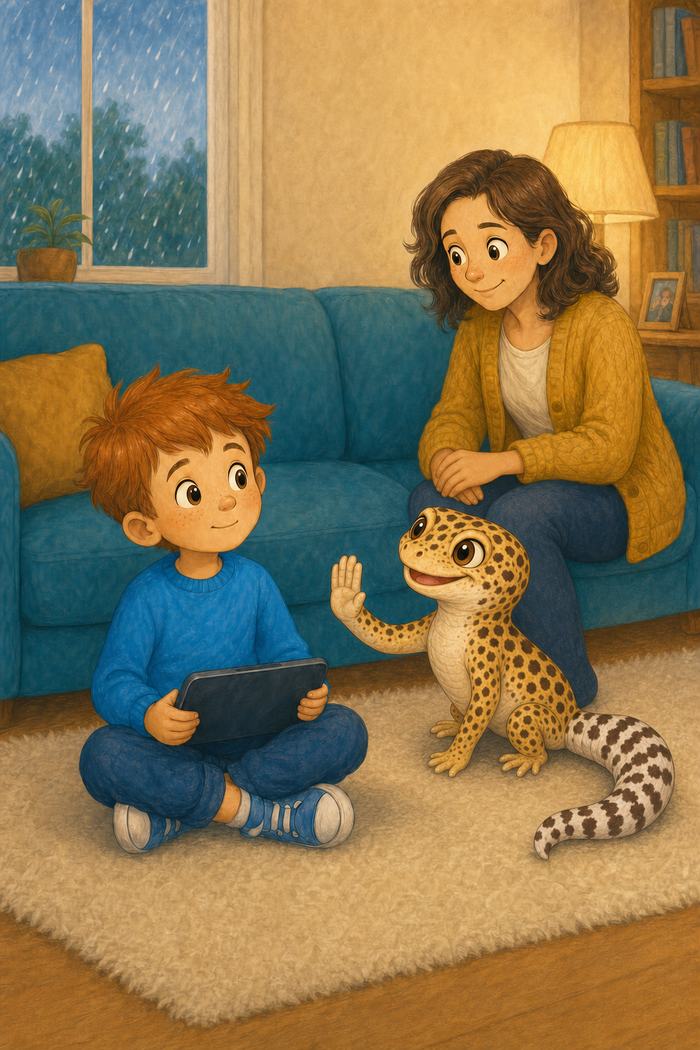
Read the large story text with your child. The smaller grown-up note explains the practical safeguard behind that moment.
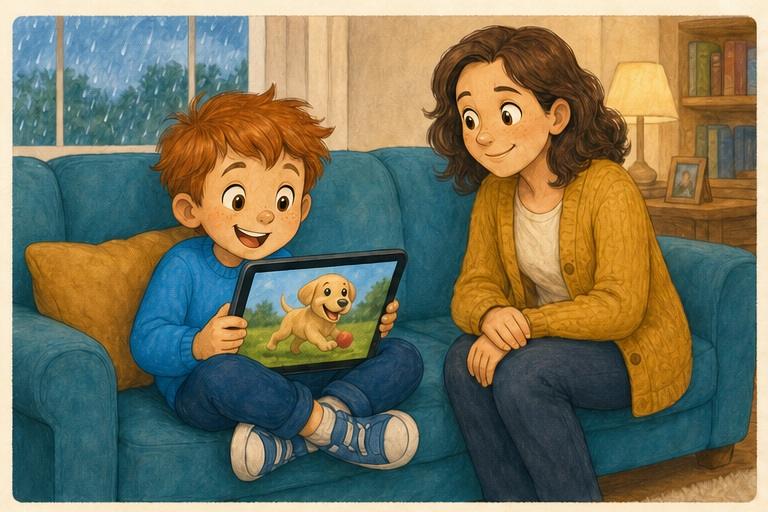
A rainy afternoon
Rain tapped on the window. Leo curled up on the sofa with Mum nearby and chose a funny puppy video. It made him laugh so much that he nearly dropped the cushion.
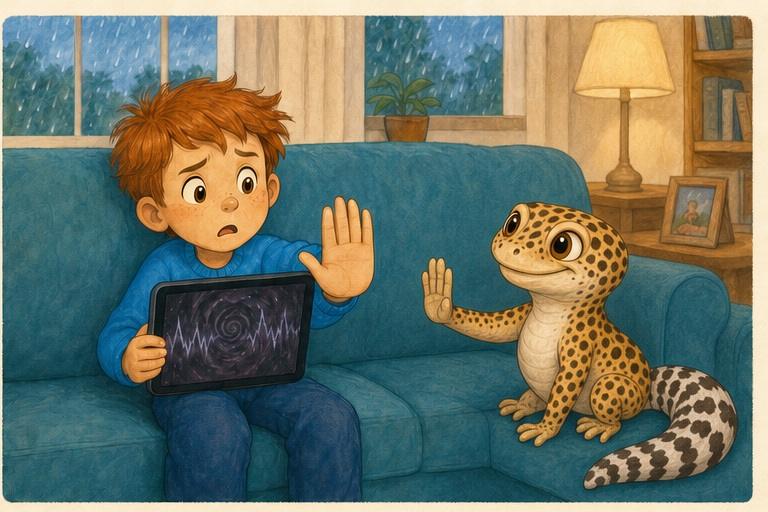
The video changed
The next video started by itself. It was dark, noisy and much too intense. Leo's tummy squeezed tight. JB the leopard gecko padded over and raised one foot. If it feels wrong, you do not have to keep watching, he reminded Leo. Leo raised his hand, stopped the video and put the tablet down.
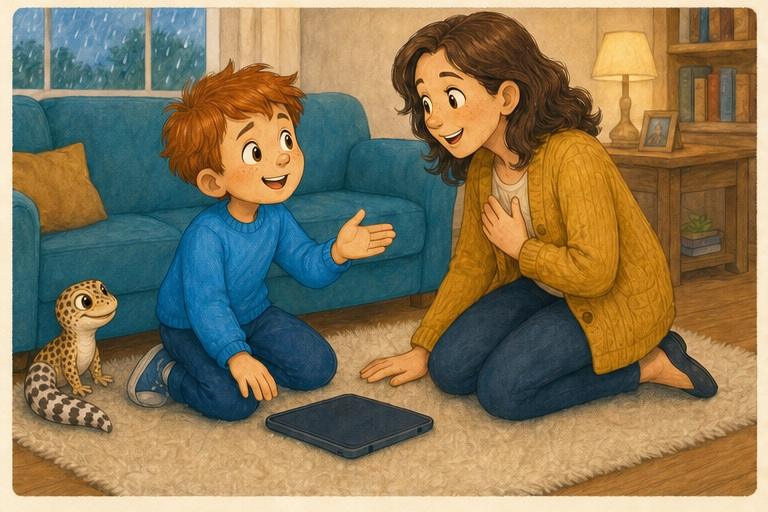
Leo tells Mum
Mum, that video felt wrong, Leo said quietly. Mum sat beside him and listened. Thank you for telling me. You are not in trouble, she said. Together they closed the video, reported it and checked the settings. JB gave a proud little nod.
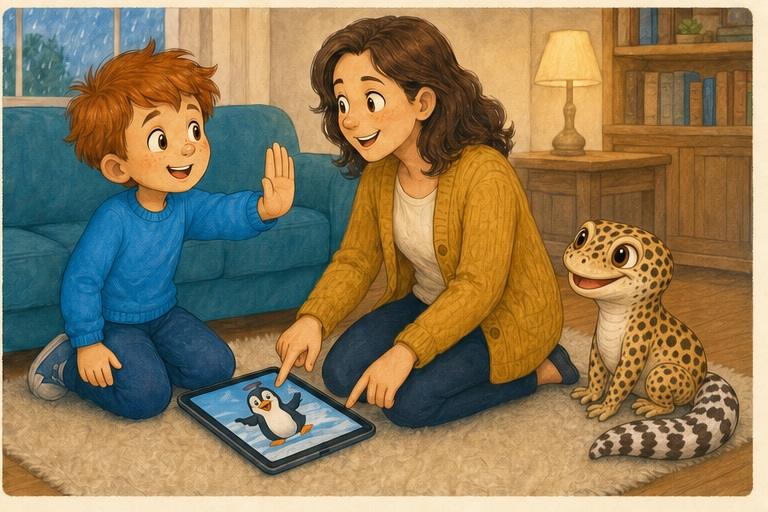
The Bright Button practice
Later, Leo chose a silly penguin video they already knew. Then he showed Mum the three actions: stop the video, pause the screen and tell a grown-up. JB copied him, then froze halfway through an imaginary biscuit. Leo laughed. The internet could still be fun, and Leo knew what to do if something felt wrong.
This story and its illustrations were developed with the help of generative AI. Its characters, safety message and final editorial decisions are human-led and reviewed before publication.
Leo and the Mystery Message
A friendly game message asks a personal question, so Leo learns which clues stay private.